
Original post by user Dan McFarland
I found that the default email template shows un-desirable preview information on mobile devices:
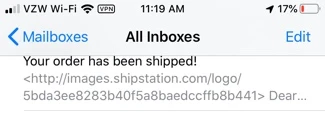
When trying to utilize pre-headers, I noticed that the email template via HTML doesn't allow the use of <head> items. It also does not work if you try other pre-header "cheats" that style-hide preview tags (technical reason that I won't explore here -- too long)
Ultimately, if you want to have the logo show in the email as the top-most thing within the email itself, but also want the first lines of text to be what shows up in the preview lines on mobile and other email clients, like this:
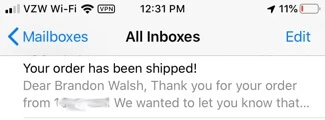
The key is to swap out the line at the top that says:
<img src="http://images.shipstation.com/logo/00000">
to use a base64-encoded file instead of the http:... reference.
Here are the steps:
- Begin with the logo file you wish to use as a PNG file
- Use an online utility like https://onlinepngtools.com/convert-png-to-base64 where you can upload the PNG file and transform it into a Base64 string equivalent. Be sure to check the "Create a valid data:image" button! Copy the results to the clipboard. You will find a string like this: data:image/png;base64,iVBORw...Jggg==
- Replace the http://... text with the clipboard, so you have a final line that says something like this:
<img src="data:image/png;base64,iVBORw...Jggg==">
In the above cases, I used ... to represent "lots of other letters/numbers", so this will be a long string!
Here are the upsides/caveats:
- your emails will look correct
- you can continue to style the <img> tags any way you want
- your image, once encoded, won't change, whereas the old way uses the default store logo image, even if it changes
- you won't be able to use the template visual editor anymore -- HTML view only
- you can use this same technique to add any images anywhere you want, too
- if you know how, it is best to "optimize" your images first, which makes the images load faster. search the internet if you don't know how. I use ImageOptim, myself.